






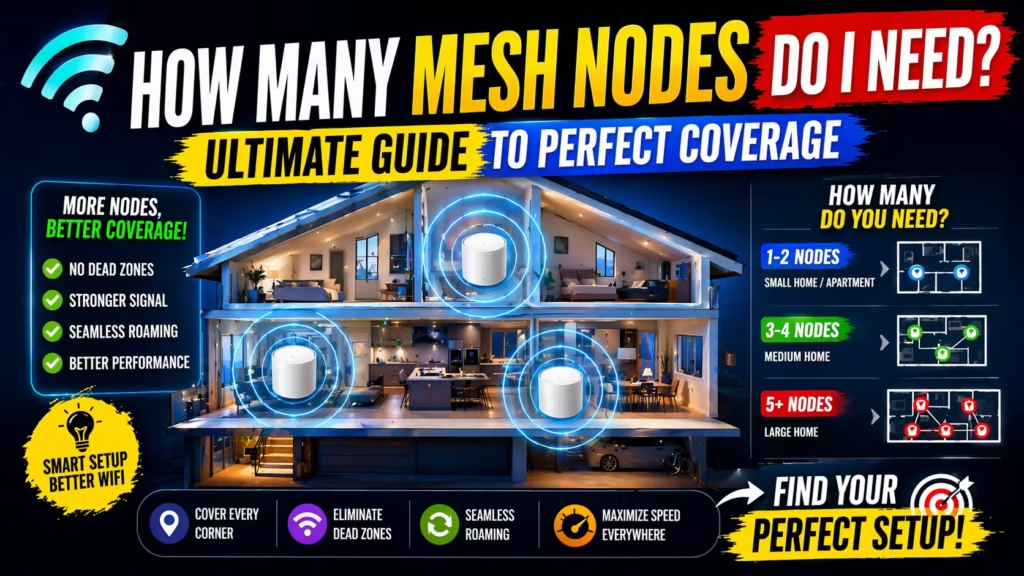
A strong and reliable Wi-Fi network is essential in today’s homes, especially as we add more smart devices and stream more high-definition content. If you have slow zones, dead spots, or unreliable connections, a mesh Wi-Fi system is often the best solution. But a common question is: How many mesh nodes do I need for my space? Picking too few leaves you with weak spots; too many, and you’re wasting money and complicating your network.
The answer depends on several factors such as your home’s size, layout, building materials, the number of floors, and how many devices you use. But with the right information, you can make a smart decision. In this guide, you’ll learn exactly how to calculate the right number of mesh nodes, see real-world examples, and get tips many beginners overlook.
Whether you’re moving into a new house, upgrading your Wi-Fi, or trying to cover a tricky space, this article will help you build a network that just works.
What Are Mesh Nodes And How Do They Work?
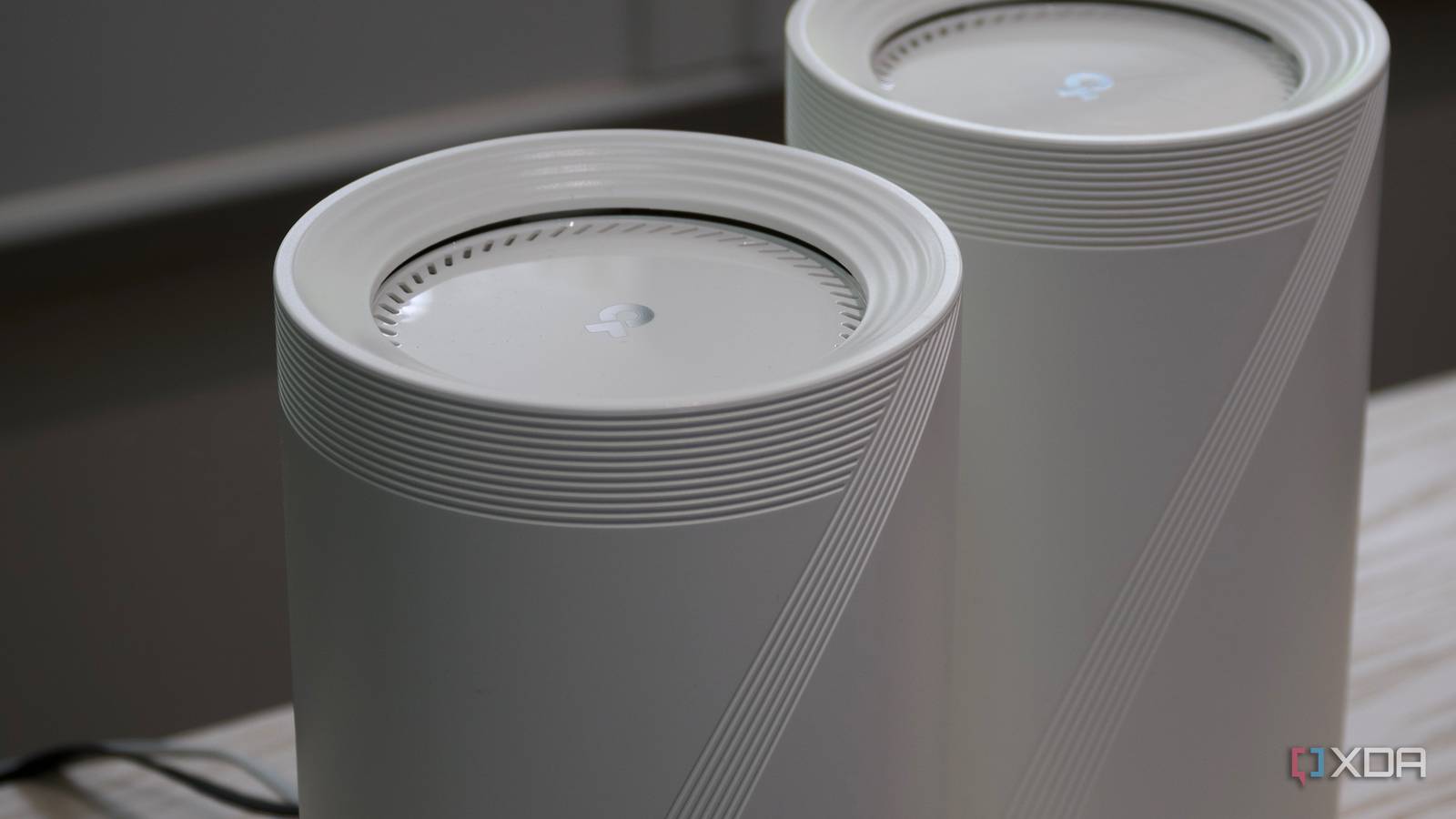
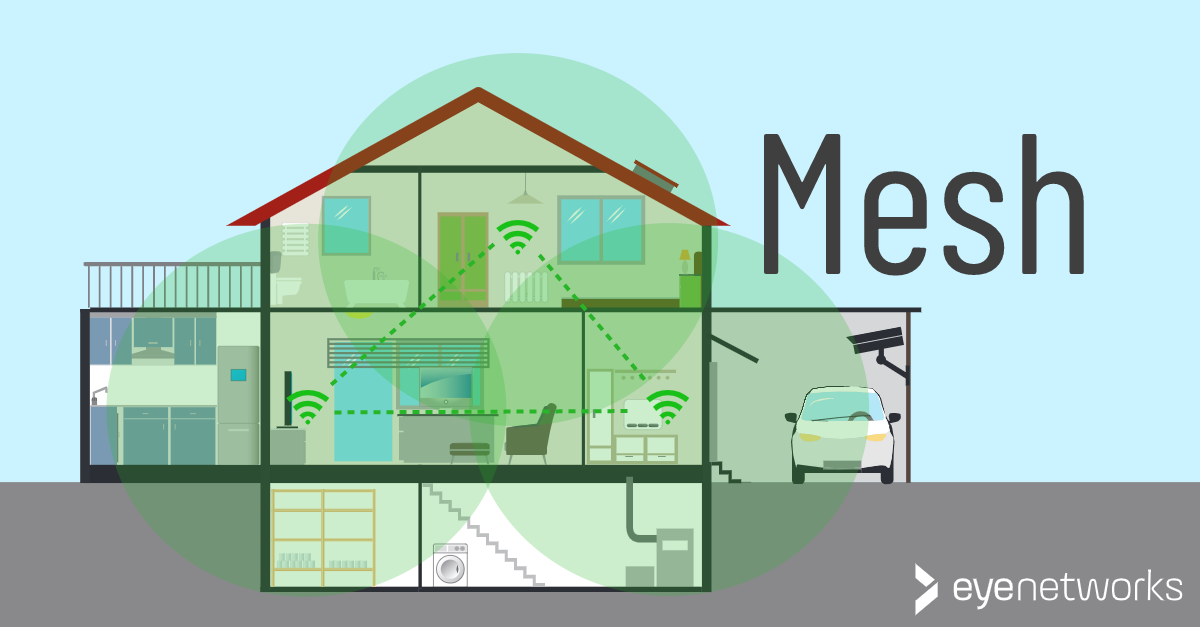
A mesh Wi-Fi system uses several devices called nodes to create a single, seamless wireless network. There’s one main unit (the router) and one or more secondary units (satellites or points). All the nodes communicate with each other, not just the main router, so your devices connect automatically to the strongest signal as you move around.
This is different from a traditional router and extender setup. With extenders, you might see a separate network name and need to manually switch, but with mesh, everything appears as one network. Mesh nodes use special backhaul connections—sometimes wireless, sometimes through Ethernet—to talk to each other.
This keeps speeds high and roaming smooth.
Key Factors That Affect The Number Of Mesh Nodes Needed
It’s easy to think more nodes are always better. But in reality, placement and quality matter as much as quantity. Here’s what you need to consider before buying:
1. Home Size (square Footage)
The most important factor is your home’s size. Most mesh starter kits cover between 3,000 and 5,000 square feet with two or three nodes. But coverage can drop with thick walls or odd layouts.
- Small apartments (under 1,200 sq ft): Usually, one router or a two-node kit is enough.
- Medium homes (1,200–2,500 sq ft): Two or three nodes are often needed.
- Large homes (2,500–5,000+ sq ft): Three or more nodes, spaced correctly, will be required.
2. Number Of Floors
Wi-Fi signals have a harder time traveling vertically than horizontally, especially through concrete or metal. If you have a multi-story home, you’ll need at least one node per floor. Often, you’ll need more on the ground and top floors, since routers placed in the middle can struggle to reach far ends.
3. Building Materials
Materials like brick, concrete, plaster, and metal block Wi-Fi signals more than wood or drywall. If your home has thick walls, a basement, or unusual construction, you may need extra nodes to reach every room.
4. Home Layout
Open layouts let Wi-Fi travel farther. But if your house has long hallways, closed rooms, or wings, signals can weaken quickly. Sometimes, you need a node just to handle a far-off office or garage.
5. Device Density
More devices (phones, TVs, smart gadgets) mean more network traffic. If you have 30+ connected devices, you’ll want more nodes to balance the load and keep speeds high in busy areas.
6. Outdoor Coverage
If you want Wi-Fi in your backyard, patio, or garage, you’ll need a node near those areas. Outdoor coverage often requires a special weather-resistant node or careful placement near windows.
7. Internet Speed
Mesh nodes can only deliver the speed they receive from your main router. If you have gigabit internet, you need to keep nodes close enough for strong backhaul connections, or speeds will drop.
8. Node Quality And Brand
Premium mesh systems (like Netgear Orbi or Google Nest Wifi) often cover more area per node than budget brands. Always check manufacturer specs, but treat them as optimistic.
How To Calculate The Number Of Mesh Nodes For Your Home
Let’s break down a simple way to estimate how many nodes you need, step by step.
Step 1: Measure Your Space
Find your total square footage and count the number of floors. Don’t forget finished basements, attics, or detached garages that need Wi-Fi.
Step 2: Check Manufacturer Coverage
Most mesh kits advertise coverage per node:
- 1 node: 1,500–2,000 sq ft
- 2 nodes: 3,000–4,000 sq ft
- 3 nodes: 4,500–6,000 sq ft
These numbers are for open spaces with minimal interference.
Step 3: Adjust For Real-world Obstacles
- For thick walls or many obstacles: Subtract 20–30% from advertised coverage.
- For each extra floor: Plan one node per floor, even if square footage is smaller.
- For garages, patios, or guest houses: Add one node for each separate area.
Step 4: Plan Node Placement
Nodes should be 30–50 feet apart for best performance. Place them in open areas, not inside cabinets or behind metal objects.
Step 5: Avoid Overcrowding
Too many nodes can cause interference and slow down your network. Stick to what you need—adding more is easy later if you find weak spots.
Real-world Examples: Matching Homes To Mesh Nodes
Let’s look at some common home layouts and how many nodes they need.
Example 1: Small Apartment (one Floor, 900 Sq Ft)
- 1 mesh node (the main router) is usually enough.
- Place it centrally for best coverage.
Example 2: Medium Suburban Home (two Floors, 2,400 Sq Ft)
- 3 mesh nodes recommended.
- Place one on each floor, with the main node near your internet modem, one on the other floor, and one at the far end of the house.
Example 3: Large Home With Basement (three Floors, 3,800 Sq Ft)
- 4 mesh nodes for full coverage.
- Main node near the modem, one per floor, and one in the basement or attic if used often.
Example 4: L-shaped House Or Long Ranch (single Floor, 2,700 Sq Ft)
- 3 mesh nodes spaced evenly along the “L” or long line.
- Prevents dead zones at far ends.
Example 5: House With Detached Garage Or Guest House
- 1 extra node for each outbuilding.
- Connect nodes within Wi-Fi range, or use Ethernet backhaul if possible.
For more guidance on mesh Wi-Fi system choices and placement, see the insights at Best Mesh WiFi System for Large Homes.
Typical Mesh Node Recommendations By Home Size
To make things clearer, here’s a direct comparison of home sizes and recommended mesh nodes:
| Home Size (sq ft) | Floors | Nodes Needed | Notes |
|---|---|---|---|
| 800–1,200 | 1 | 1 | Open layout, no thick walls |
| 1,200–2,500 | 1–2 | 2–3 | Add one per floor |
| 2,500–4,000 | 2–3 | 3–4 | Basements/attics may need extra |
| 4,000–6,000 | 3+ | 4–6 | Large or complex layouts |
Common Mistakes When Choosing Mesh Nodes
People often make errors when setting up mesh Wi-Fi. Avoid these for a stronger network.
1. Relying Only On Manufacturer Claims
Real-world coverage is almost always less than advertised. Walls, doors, and furniture all reduce signal strength.
2. Placing Nodes Too Far Apart
If nodes are more than 50 feet apart, or separated by several walls, speeds drop. Place nodes where signals overlap for seamless handoff.
3. Ignoring Vertical Distance
Don’t forget to cover upper and lower floors. Place nodes above or below each other if possible, not just side by side.
4. Overloading With Too Many Nodes
More nodes don’t always mean better coverage. Too many can cause interference and slower speeds.
5. Not Using Ethernet Backhaul
If your home is wired with Ethernet, connect nodes using cables. This boosts speeds and reduces wireless congestion.
6. Forgetting About Device Placement
If your smart TV or gaming console is far from any node, you’ll get poor performance. Plan node locations around where you actually use Wi-Fi.
For more detailed advice on mesh Wi-Fi systems for large spaces, check Best Mesh WiFi System for Large Homes.
Advanced Considerations: Getting The Most From Your Mesh Network
Beyond just adding nodes, here are some expert tips to maximize your network:
Use Quality Of Service (qos) Features
Many mesh systems let you prioritize traffic for devices like smart TVs or work laptops. This keeps video calls or streaming smooth, even if others are gaming or downloading.
Separate 2.4 Ghz And 5 Ghz Bands
Some mesh systems combine both bands into one network name. For best speeds, connect newer devices to 5 GHz, which is faster but has shorter range. Reserve 2.4 GHz for older gadgets or those far from nodes.
Monitor Network Health
Most mesh Wi-Fi apps show you which devices connect to each node, signal strength, and bandwidth usage. Use this info to adjust node placement and spot weak areas.
Plan For Growth
If you plan to add smart devices or expand your home, buy a system that lets you add more nodes easily. Some cheaper kits can’t be expanded.
Consider Wired Backhaul
If your home has Ethernet jacks, use them to connect mesh nodes. This frees up Wi-Fi for your devices and boosts overall speed.
How Many Mesh Nodes Do I Need For Special Cases?
Some situations call for extra planning:
Apartments In Dense Buildings
If you live in a condo or apartment, neighboring Wi-Fi can cause interference. Place nodes away from shared walls. You may need more nodes than square footage suggests.
Old Homes With Thick Walls
Stone, brick, or concrete walls cut signals sharply. Place nodes in doorways or open areas, and expect to need extra units.
Large Outdoor Areas
Backyards, patios, or barns need special attention. Some mesh systems offer outdoor-rated nodes, or you can place an indoor node near a window.
Multi-generational Homes
If you have a separate suite or apartment in your house, treat it as a separate zone needing its own node.
Comparing Top Mesh Systems And Node Coverage
Different brands offer different coverage per node. Here’s a comparison of popular models:
| Mesh System | Coverage per Node (sq ft) | Max Expandable Nodes | Special Features |
|---|---|---|---|
| Google Nest Wifi | 2,200 | 5+ | Easy setup, smart speaker built in |
| Netgear Orbi | 2,500–3,000 | 6+ | Tri-band, Ethernet backhaul |
| Eero 6 | 1,500 | Unlimited | Amazon Alexa integration |
| TP-Link Deco X20 | 2,000 | 10+ | Wi-Fi 6 support |
For recommendations on the best mesh Wi-Fi systems for big homes, visit Best Mesh WiFi System for Large Homes.
Practical Tips For Planning Your Mesh Network
- Place nodes in open spaces, not inside cabinets or behind TVs.
- Avoid placing nodes near microwaves or cordless phones—they cause interference.
- Keep nodes above the ground (on shelves or tables) for better coverage.
- Test signal with your phone: Walk around and watch for weak spots before finalizing placement.
- If possible, use the same brand and model for all nodes for best compatibility.
When To Upgrade Or Add More Nodes
- If you notice slow speeds or dropped connections in certain rooms, add a node.
- If your family adds more devices (work laptops, smart cameras), you may need more coverage.
- If you remodel or finish a basement/attic, revisit your mesh layout.
Mesh Nodes Vs Traditional Range Extenders
Some people wonder why not just use Wi-Fi extenders. Here’s a quick comparison:
| Feature | Mesh Nodes | Range Extenders |
|---|---|---|
| Network Name | Single, seamless | Often separate names |
| Automatic Roaming | Yes | No (usually manual) |
| Speed Loss | Minimal | Significant at far ends |
| Setup | Simple app | Manual, can be complex |
Mesh is better for whole-home coverage and easy management, especially for larger or more complex spaces.
Non-obvious Insights Beginners Miss
- Placement matters more than quantity. Many first-time buyers add too many nodes but still have dead zones because the nodes are not in the right spots. Always start with manufacturer recommendations, then test and adjust placement before buying extras.
- Ethernet backhaul can double your speeds. If your home is wired, connect as many nodes as possible with cables. This reduces wireless congestion and gives you full speed at every node—something wireless-only setups can’t always do.
- Don’t mix brands or models. Beginners sometimes add a different brand’s node to an existing system. This rarely works well and can cause dropped connections or slow speeds.
- Firmware updates matter. Manufacturers regularly improve node performance with software updates. Use your mesh system’s app to keep firmware up to date for better stability and speed.
- Test before you buy more. Most systems let you start with two or three nodes. Walk around your home, check speeds with a phone or laptop, and only buy more if you have real weak spots.
For more information on selecting and setting up the best mesh Wi-Fi system for large homes, you can review Wikipedia’s Mesh Networking resource.
Frequently Asked Questions
How Do I Know If I Need More Mesh Nodes?
If you have dead spots, slow speeds in certain rooms, or devices disconnect as you move around, you likely need more mesh nodes. Test your network by walking through your space with a phone or laptop and checking signal strength.
Can I Add More Nodes To My Mesh System Later?
Yes, most mesh systems are expandable. You can start with a basic kit and add more nodes as needed. Just make sure you buy compatible nodes from the same brand and model line.
Do Mesh Nodes Need To Be Wired Together?
No, mesh nodes usually connect wirelessly. However, using Ethernet backhaul (wiring them together) can boost speeds and reliability, especially in large or complex homes.
Will Too Many Mesh Nodes Slow Down My Network?
Yes, adding too many can cause interference and reduce speeds. It’s better to place a few nodes well than to add too many. Most homes don’t need more than 3–4 nodes unless they’re very large or have unusual layouts.
What’s The Difference Between A Mesh Node And A Wi-fi Extender?
A mesh node is part of a system that creates a single seamless network, allowing devices to roam automatically. A Wi-Fi extender creates a separate network and usually needs to be switched to manually. Mesh nodes provide better coverage and faster speeds for most users.
A well-planned mesh Wi-Fi system can transform your home network, giving you reliable, fast internet in every room. By understanding your home’s size, layout, and needs, you can choose the right number of mesh nodes and enjoy seamless streaming, working, and gaming without the frustration of dead spots.