






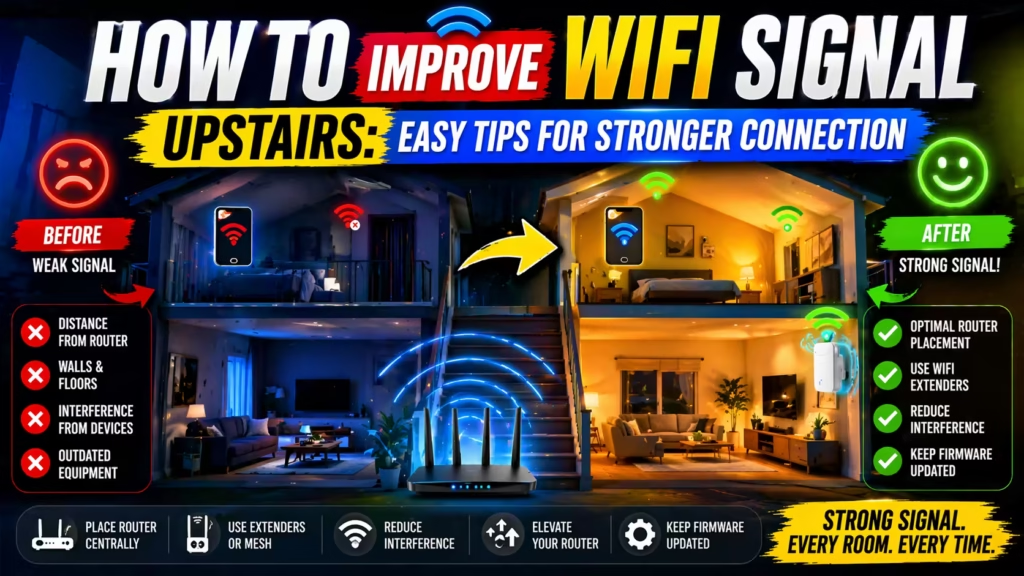
How to Improve Wifi Signal Upstairs is a common problem for homeowners dealing with buffering videos, dropped calls, and slow internet speeds on the second floor. If you live in a house with thick walls, older construction, or a large layout, getting a strong and stable WiFi connection upstairs can feel difficult.
But you don’t have to live with weak, unreliable internet. There are several effective ways to boost your WiFi signal upstairs, from optimizing router placement to using mesh WiFi systems and extenders.
Let’s explore how you can eliminate dead zones, improve coverage, and enjoy faster, more reliable WiFi throughout every floor of your home.
Understand Why Wifi Signal Is Weak Upstairs
Before you try to fix weak WiFi upstairs, it helps to know why the signal drops. WiFi signals can be stopped or slowed by many things in your house. Here are the most common causes:
- Distance from the router: The further you are from your WiFi router, the weaker the signal becomes. If your router is downstairs, the signal has to travel through the ceiling, floors, and walls.
- Obstacles: Concrete, brick, metal, and even thick wooden floors can block or reduce WiFi signals. Appliances like microwaves or cordless phones also create interference.
- Router placement: Many people hide their routers in a corner, behind furniture, or in a closet. This reduces signal strength, especially to rooms upstairs.
- Old equipment: Older routers may not have the power or technology to cover a whole house, especially if you have many devices connected.
- Signal congestion: In apartments or dense neighborhoods, too many WiFi signals on the same channel can slow things down.
Understanding these issues will help you choose the right solution and avoid wasting time on fixes that don’t work.
Place Your Router In The Best Location
One of the easiest and most effective ways to improve your WiFi upstairs is to move your router. The goal is to place it where the signal can reach as much of your home as possible, especially the upstairs rooms.
- Central position: Place the router as close to the center of your home as possible. If your house has two floors, try to put the router on a high shelf on the first floor, or even on the second floor if you spend more time there.
- Open area: Avoid putting the router inside cabinets, behind TVs, or near metal objects. These can block the signal. Place it in an open area, away from thick walls or large appliances.
- Vertical placement: WiFi signals spread out and down from the router. Placing it higher (on a shelf or mounted on the wall) helps the signal reach upstairs better.
Example: If your router is currently in the basement, moving it to the main floor (and away from metal pipes or laundry machines) can make a big difference upstairs.
Non-obvious insight: Many people don’t realize that signals can travel better through wood than through concrete. If you have a choice, place the router where it’s aligned with wooden floors or walls, not brick or stone.
Upgrade To A Modern Router
If your router is more than 3-5 years old, it might not have the power or features to cover your whole house. Newer routers use better technology to send signals further and through obstacles.
- Dual-band or tri-band routers: These send signals on more than one frequency, reducing congestion and interference.
- WiFi 6 (802.11ax): The newest standard, WiFi 6, handles more devices at once and delivers stronger signals. If you have many smart devices, streaming boxes, or work from home, this upgrade is worth it.
- Stronger antennas: Some new routers let you attach larger antennas or include them already for better range.
Real-world comparison:
| Router Feature | Old Router (5+ years) | New Router (WiFi 6) |
|---|---|---|
| Maximum Speed | 300 Mbps | 1200+ Mbps |
| Device Support | 8-10 devices | 30+ devices |
| Coverage Range | 1,000 sq ft | 2,500+ sq ft |
Tip: Check your router’s age and model. If it’s using WiFi 4 (802.11n) or earlier, an upgrade will likely give you a noticeable improvement, especially for upstairs rooms.
Use A Mesh Wifi System
For large homes or houses with thick walls, a mesh WiFi system is one of the best solutions. Instead of relying on one router, mesh systems use several units (“nodes” or “satellites”) placed around your home. These units communicate with each other to create one strong network that covers every room, including upstairs.
How mesh systems help:
- They eliminate dead zones by spreading the signal more evenly.
- You can add more nodes where you need better signal (such as at the top of the stairs or in a far bedroom).
- Devices automatically connect to the nearest node for the best speed.
Example: With a three-node mesh system, put the main unit near your internet modem, a second one halfway up the stairs, and a third in the upstairs hallway.
Practical tip: Choose a mesh system that fits your home’s size. Too few nodes won’t cover all areas; too many is a waste of money.
For a detailed comparison of the best mesh WiFi systems for large homes, see the guide at Best Mesh WiFi System for Large Homes.
Add A Wifi Range Extender Or Repeater
If moving your router isn’t enough and a mesh system is too expensive, a WiFi extender (also called a repeater) can help boost the signal upstairs. These devices pick up your existing WiFi signal and rebroadcast it to reach further rooms.
- Plug-and-play: Most extenders plug into a wall outlet. Place them halfway between your router and the area with weak signal (for example, at the top of the stairs).
- Simple setup: Many extenders have a “WPS” button for easy connection to your router.
- Affordable: Extenders are usually cheaper than mesh systems.
Important advice: Extenders work best if they receive a strong signal from your router. If you put them too far away (where the signal is already weak), they won’t help much.
Non-obvious insight: Extenders create a new network name by default (like “HomeWiFi_EXT”). Some modern extenders can use the same name as your main network, so your devices switch automatically. Check this feature when you buy.
Use Powerline Adapters For Wired Stability
Sometimes WiFi just can’t reach upstairs well, no matter what you try. In these cases, powerline adapters are a clever solution. They use your home’s electrical wiring to send internet data from your router to another room.
- How it works: Plug one adapter into a wall outlet near your router and connect it with an Ethernet cable. Plug the second adapter into an outlet upstairs and connect it to a computer, smart TV, or another WiFi access point.
- Stable connection: Powerline adapters often give you faster, more reliable speeds than weak WiFi in hard-to-reach places.
- WiFi version: Some powerline adapters also create a new WiFi hotspot upstairs.
Example: If your home office is upstairs and your WiFi is weak, use a powerline adapter for a wired connection to your computer or to create a new wireless access point.
Warning: Powerline adapters work best in homes with newer wiring and when both adapters are on the same electrical circuit. They may not work as well in very old houses or across different circuit breakers.
Change Wifi Channel And Frequency
WiFi signals use different “channels” to communicate. If your neighbors are using the same channel, or if there’s interference from other electronics, your speed can drop, especially upstairs where the signal is already weaker.
- 2.4 GHz vs. 5 GHz: The 2.4 GHz band travels further and goes through walls better, but it’s more crowded. The 5 GHz band is faster and less crowded but doesn’t travel as far.
- Manual channel selection: Log into your router’s settings and try changing the WiFi channel. Use channels 1, 6, or 11 for 2.4 GHz, as these don’t overlap.
- Auto channel selection: Some routers automatically pick the best channel, but not all do this well. Test different channels for better performance.
Pro tip: Use a WiFi analyzer app on your phone to see which channels have the least interference upstairs.
Non-obvious insight: Sometimes, the upstairs area will have less interference on a different channel than the downstairs, due to different neighbors or appliances. Try changing the channel for a few days and measure the result.
Upgrade Your Device Antennas
Some routers and WiFi cards allow you to replace their antennas. Upgrading to high-gain antennas can increase signal strength and range, especially in multi-story homes.
- Directional antennas: Focus the signal in a specific direction—helpful if you want to aim the signal upstairs.
- Omni-directional antennas: Spread the signal in all directions—useful for general coverage.
How to upgrade:
- Check if your router’s antennas can be unscrewed.
- Buy high-gain antennas (measured in dBi; higher means stronger signal).
- Replace the old antennas and point them in the direction of the weak area.
Example: Replace the standard 2 dBi antennas with 8 dBi high-gain models and angle them toward the ceiling for better upstairs coverage.
Practical tip: Not all routers allow antenna upgrades. Check your user manual or the manufacturer’s website.
Reduce Wifi Interference
Many electronics can interfere with your WiFi signal, especially in modern homes full of smart devices. Common sources include:
- Microwaves
- Cordless phones
- Bluetooth devices
- Baby monitors
- Wireless cameras
Steps to reduce interference:
- Place your router away from these devices.
- Use the 5 GHz band, which is less affected by most household electronics.
- Avoid overlapping frequencies (for example, don’t use Bluetooth and WiFi on the same band near each other).
Example: If your router is next to a microwave in the kitchen, moving it away can instantly improve signal upstairs.
Non-obvious insight: Even large metal objects (like filing cabinets or radiators) reflect and absorb WiFi signals. Try moving these objects or the router itself.
Limit The Number Of Connected Devices
Your WiFi router has a limited amount of “bandwidth” it can provide. The more devices connected—phones, laptops, tablets, smart TVs, security cameras—the less speed each device gets, especially in areas far from the router.
- Disconnect unused devices: Log out or turn off the WiFi on devices you’re not using.
- Set device limits: Some routers let you set how many devices can connect at once.
- Prioritize important devices: Advanced routers let you set “quality of service” (QoS) to give priority to devices upstairs, like your work laptop or smart TV.
Example: If everyone in the house is streaming video in different rooms, devices upstairs may get a weak signal. Reducing the load helps.
Set Up A Dedicated Access Point Upstairs
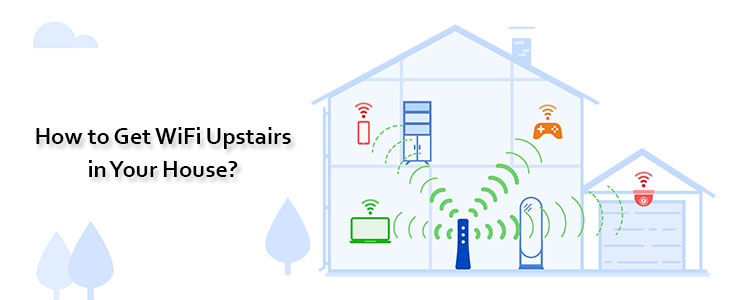
Sometimes the best way to get strong WiFi upstairs is to add a second router or access point on the upper floor. This device connects to your main router with an Ethernet cable (or via powerline adapters), creating a new wireless zone with full strength.
- Benefits: Full-speed WiFi in the upstairs area, less interference from walls and floors.
- How to set up: Run an Ethernet cable from your main router to the upstairs access point. Set the same network name and password for seamless roaming.
- Device choices: You can use an old router (set to “access point mode”) or buy a dedicated wireless access point.
Example: If you have a home office or game room upstairs, a dedicated access point ensures the best possible speed.
Advanced tip: Some mesh systems let you add more nodes by wiring them in, for even better performance. For large homes, see the recommendations at Best Mesh WiFi System for Large Homes.
Update Router Firmware
Many people forget that routers are like small computers—they need software updates (called firmware) to run well. Manufacturers release updates to fix bugs, improve performance, and add new features.
- Check for updates: Log into your router’s control panel (often at 192.168.1.1 or 192.168.0.1 in your browser) and look for a “Firmware Update” section.
- Download safely: Only use official updates from the manufacturer’s website.
- Update regularly: Check for updates every few months.
Non-obvious insight: Firmware updates can improve speed and stability, especially for older routers. A single update can sometimes fix weak signals upstairs.

Secure Your Wifi Network
If your WiFi is not secure, neighbors or strangers can connect and use your bandwidth, slowing things down for everyone—including upstairs. Make sure your network is safe:
- Use WPA3 or WPA2 encryption: Avoid old WEP or open (no password) networks.
- Strong password: Choose a password that’s hard to guess.
- Hide your network name (SSID): Optional, but it can make your network less visible to outsiders.
Example: If you notice your WiFi is slow at night, it could be someone nearby using your connection. Secure it, and your speed may improve.
Adjust Device Settings For Better Reception
Sometimes, the problem isn’t the router—it’s the device upstairs. Laptops, phones, and smart TVs have different WiFi chips and antennas. Here’s how you can help them get a better signal:
- Update drivers: Make sure your device’s WiFi drivers are up-to-date.
- Forget and reconnect: Remove the WiFi network and reconnect to refresh settings.
- Turn off “power-saving” for WiFi: Some devices lower WiFi power to save battery, which can weaken the signal.
Example: On Windows laptops, go to Device Manager > Network Adapters > Power Management, and uncheck “Allow the computer to turn off this device to save power.”
Consider Wired Alternatives For Critical Devices
If you need maximum speed and stability for work, gaming, or streaming, nothing beats a wired connection. While WiFi is convenient, Ethernet is always faster and more reliable.
- Run Ethernet cables: If possible, run a cable from your router to critical devices upstairs (like a work computer or gaming console).
- Use powerline adapters: If running cable is not possible, powerline adapters are a good second choice.
Example: Video calls dropping in your upstairs office? A direct Ethernet connection will fix this, even if your WiFi is weak.
Monitor And Test Wifi Performance
Don’t guess—test your WiFi to see what really works. There are free and paid tools to measure speed, coverage, and interference.
- Speedtest.net: Test your internet speed in different rooms.
- WiFi analyzer apps: Show signal strength and the best channels.
- Router logs: Some routers show which devices are connected and their signal quality.
Tip: Make changes one at a time and measure the effect. This way you know what works and what doesn’t.
Data snapshot:
| Location | Before Improvement | After Improvement |
|---|---|---|
| Living Room (Downstairs) | 50 Mbps | 55 Mbps |
| Bedroom (Upstairs) | 7 Mbps | 40 Mbps |
| Office (Upstairs, far corner) | 2 Mbps | 25 Mbps |
Non-obvious insight: WiFi signals can change throughout the day. Test at different times to get a true picture.
When To Call A Professional
If you’ve tried all the solutions above and still have weak WiFi upstairs, it might be time to call a network professional.
- Complex layouts: Large homes, thick concrete, or unusual layouts may need expert help.
- Special needs: If you run a home business or need guaranteed speed everywhere, a pro can design the best solution.
- Wiring issues: For powerline adapters or running new cables, an electrician or IT expert can help.
Tip: Get a quote before any work starts, and ask for a clear explanation of the solution.
For advanced home setups, see what mesh systems professionals recommend in the Best Mesh WiFi System for Large Homes article.
Frequently Asked Questions
What Is The Best Way To Boost Wifi Signal Upstairs?
The most effective way is often to use a mesh WiFi system or add a dedicated access point upstairs. These solutions provide strong, even coverage and avoid many common problems with weak signals.
Do Wifi Extenders Really Work For Upstairs Rooms?
Yes, WiFi extenders can help if placed correctly—usually halfway between your router and the area with weak signal. However, they may not be as fast or seamless as mesh systems.
Will Moving My Router Help Wifi Upstairs?
Absolutely. Router placement is key. Moving your router to a more central, open location—preferably higher up—can greatly improve signal strength on upper floors.
Are Powerline Adapters Safe And Reliable?
Powerline adapters are generally safe and reliable, especially in homes with modern wiring. They’re a good alternative when WiFi cannot reach certain rooms, but performance depends on your home’s electrical system.
How Can I Check If My Wifi Signal Is Strong Enough Upstairs?
Use a WiFi analyzer app or speed test website on your phone or laptop in different upstairs rooms. Look for signal strength above -67 dBm and download speeds close to what you pay for. Adjust your setup if the numbers are much lower.
A strong WiFi signal upstairs is possible with the right mix of technology, placement, and a little testing. Whether you move your router, upgrade to a mesh system, or add an extender, you can get faster, more reliable internet in every room. For more options and in-depth reviews, check the guides from trusted sources like PCMag and the detailed mesh system recommendations at Best Mesh WiFi System for Large Homes. With the right approach, slow WiFi upstairs can be a thing of the past.